How to Connect Pa5 Controller to Phone: Pairing and Compatibility Guide
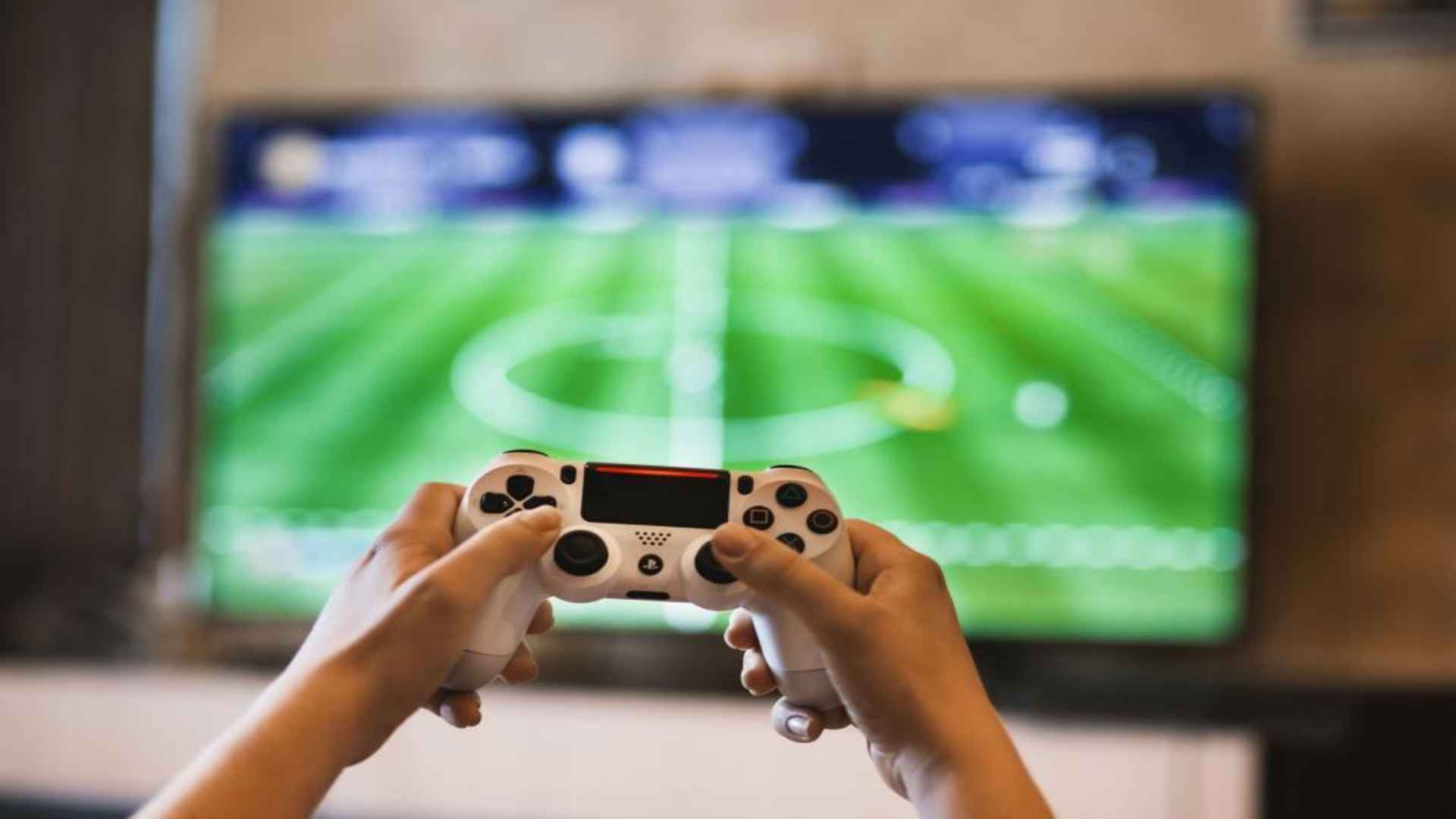
Pairing a console gamepad with a mobile smartphone transforms handheld gaming into a far more immersive experience. Modern PlayStation 5 DualSense controllers offer robust wireless features that connect easily to mobile platforms. Understanding the exact pairing steps and device requirements ensures a smooth setup for your favorite mobile games.
System Compatibility and Device Requirements
Before initiating the wireless connection process, ensure your smartphone operating system supports modern gamepads. iPhones require iOS 14.5 or later, while Android devices perform best on Android 12 or newer updates. Older operating system versions might experience input latency or fail to recognize controller buttons properly.
Hardware specifications also play a major role in overall wireless performance during intensive gaming sessions. Devices equipped with Bluetooth 5.0 or higher maintain a more stable signal with reduced input delay. Checking your phone's current firmware beforehand helps avoid unexpected disconnects.
Putting the Controller Into Bluetooth Pairing Mode
To begin the setup, make sure the controller is turned off and disconnected from any active USB cables. Press and hold the central PlayStation button simultaneously with the Create button located to the left of the touchpad. Keep holding both buttons down for roughly three seconds until the light bar surrounding the touchpad flashes blue.
This distinct blue blinking signal indicates that the gamepad is actively broadcasting a Bluetooth signal to nearby devices. If the light bar does not flash, charge the controller briefly before trying again. Once the flashing pattern starts, the unit remains discoverable for a short window.
Connecting to iPhone and Android Devices
On your smartphone, open the main Settings menu and navigate to the Bluetooth configuration section. Enable Bluetooth if it is turned off, then look through the list of available nearby devices. Select the entry labeled DualSense Wireless Controller to establish the initial digital link.
After confirming the pairing prompt on your screen, the light bar on the controller will turn a steady solid color. This solid light pattern confirms that your device is fully linked and ready for gameplay. You can now launch controller-compatible mobile titles or remote streaming applications seamlessly.
Troubleshooting Common Connection Issues
If you experience lag or button mapping glitches, try closing unnecessary apps running in the background. Interference from other active wireless electronics can occasionally cause minor input drops. Resetting your phone's Bluetooth toggle often resolves momentary pairing freezes.
When you are finished playing on your mobile device, reconnecting to your main console is simple. Plug the pad directly into your PlayStation using a compatible USB cable and press the home button. This restores the original console linkage immediately.